
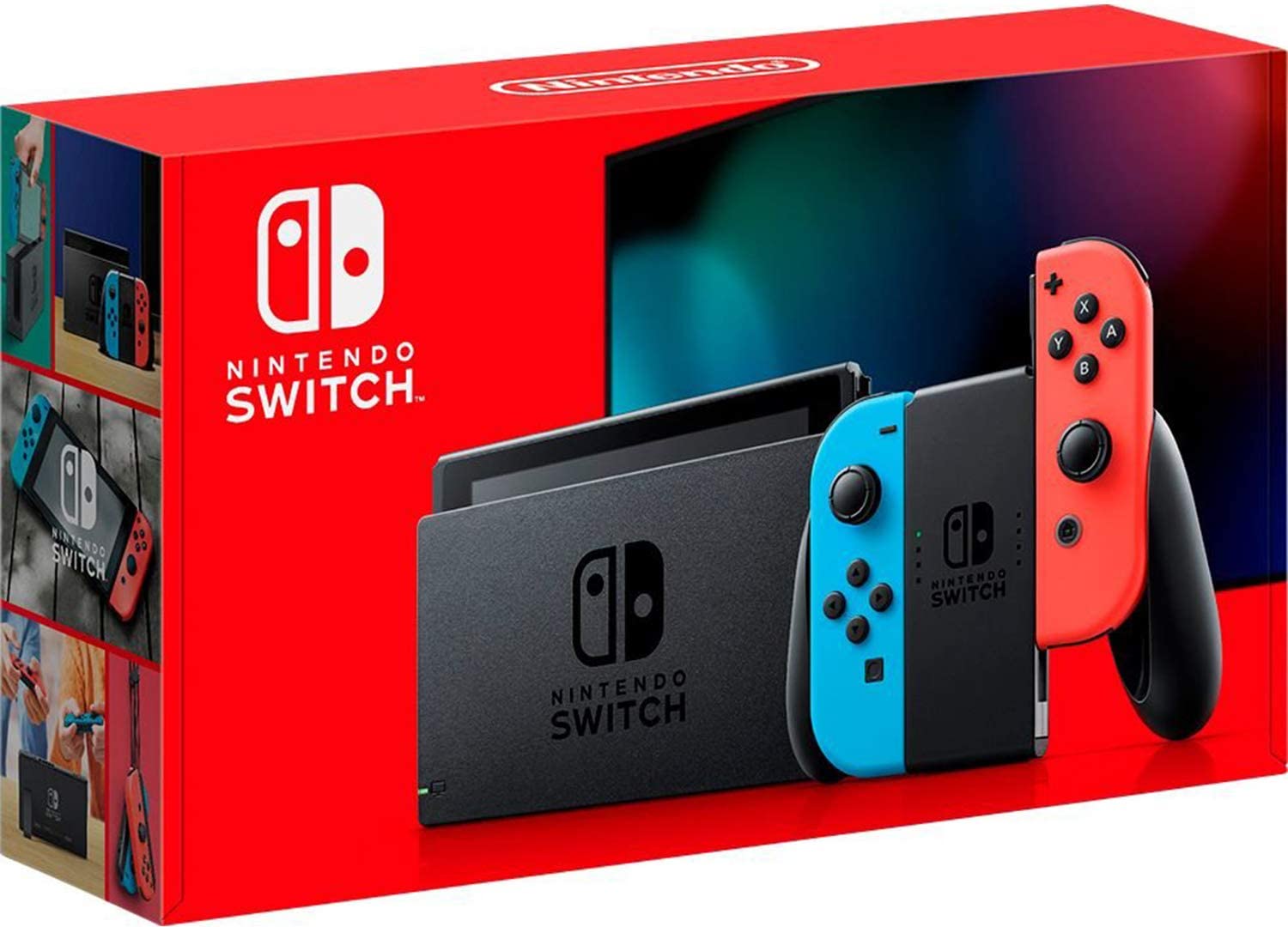
Nintendo Switch was released in 2017; as its name suggests, it is a portable home video game console developed by Nintendo. This article summarizes basic information about the Nintendo Switch and how to use it. It also explains the battery life, which is a concern when taking the device outside. Check it out if you are planning to buy the device!
How to check the battery level
Source: support.nintendo.co.jp
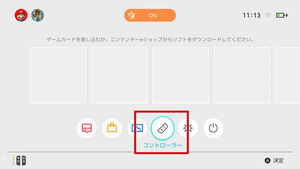
1. Select "Controller" from the HOME menu.
Source: support.nintendo.co.jp
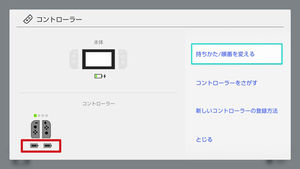
2. You can check the controller battery level.
Source: support.nintendo.co.jp
An icon appears if a Switch Pro controller is connected.
Internet connection
Source: www.nintendo.co.jp
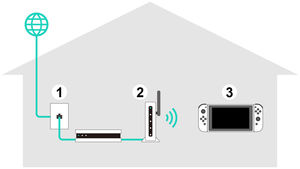
Wireless Internet connection
What You Need
① Internet Connection Environment
② Wireless router (wireless access point)
③ Main body
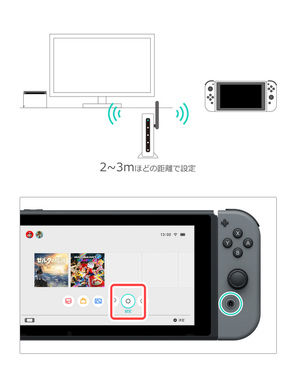
① Place the Nintendo Switch about 2 to 3 meters away from the wireless router, or you may not be able to connect to it.
② From here, operate the main unit. Press the HOME button to display the HOME menu and select "Settings".
③ Select "Internet" → "Internet settings".
④ Select the SSID of your wireless router from "Found network".
* If you can't find it, you can press the Y button to search for the wireless router again.
⑤ Enter the password of the wireless router, and when "Connected" is displayed, the setting is completed.
Q & A list Nintendo Switch support information Nintendo
support.nintendo.co.jp
Source: www.nintendo.co.jp
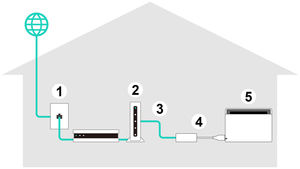
Wired Internet connection
You can connect to the Internet by wire only in TV mode.
What You Need
① Internet Connection Environment
② Router
③ LAN cable
④ Wired LAN adapter
⑤ Main body (TV mode)
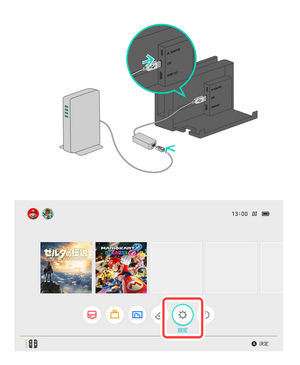
* The USB port on the back of the Nintendo Switch dock works with USB2.0. Support for USB3.0 will be available in a future update.
① Connect a wired LAN adapter (sold separately) to the USB port on the Nintendo Switch dock, and connect the router and the wired LAN adapter with a LAN cable.
② From here on, operate while watching the TV screen.
Press the HOME button on the controller to display the HOME menu, and then select Settings.
③ Select "Internet" → "Internet settings".
④ Select "Wired connection" from "Registered networks".
⑤ Select "Wired connection to the Internet" and when "Connected" is displayed, the setting is completed.
Linking users and Nintendo accounts
Source: www.nintendo.co.jp
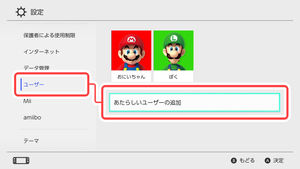
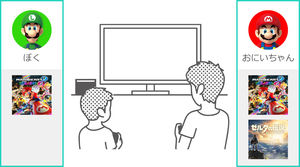
Users can make up to 8 people per unit.
From the HOME menu, select [Settings] → [Users] → [Add New User].
Source: www.nintendo.co.jp
Flow of account linkage
① Connect the main unit to the Internet.
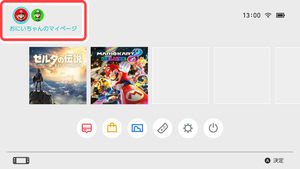
② From the HOME menu, select the user icon (My Page) and select "Profile" → "Link with Nintendo account".
③ Follow the instructions on the screen and link to your Nintendo account.
Source: www.nintendo.co.jp
What is a Nintendo account?
This account is required to use various services of My Nintendo and applications for smartphones. The Nintendo Switch allows you to use functions using the Internet by linking the user and the Nintendo account.
* For children under 12 years old, you can use it by creating a child account. Please create it from the parent's Nintendo account.
What you can do when you work together
・ Internet matches and cooperative plays (* 1)
- Using the friend function
・ Use of Nintendo e-shop (* 2)
- SNS posting of screen photos, etc.
Source: www.nintendo.co.jp
Friend
To use the Friend feature, you need to connect your Nintendo account to your user.
Source: www.nintendo.co.jp
You can check the online status of your friends from the "Friend List" on My Page. Each user can make up to 300 friends.
Source: www.nintendo.co.jp
Source: www.nintendo.co.jp
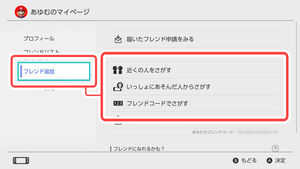
Add Friend
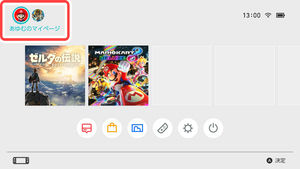
From the HOME menu, select the user icon (My Page) and select "Add friend".
There are two ways to become a friend: send a friend request for approval, or approve a friend request you receive.
Both methods require the console to be connected to the Internet.
Source: www.nintendo.co.jp
How to send three friend requests
- Send to people nearby
Select "Apply to people nearby" and follow the instructions on the screen.
- Send to the person who played with you
Select "Apply to the person you played with", select the person you want to be a friend and apply.
- Send by friend code
After the other party gives you the number, you can send a friend application to the other party by entering "Apply with friend code".
Source: www.nintendo.co.jp
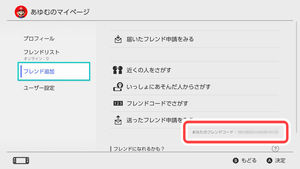
Your friend code
You can check your friend code on the "Profile" screen.
If it does not appear, check "User settings" → "Friend setting".
Source: youleben.com
Block?
If you block it, you will not be able to receive friend requests from the other party and you will not be able to meet them in the game (*).
You can block it by using the friend list or "Apply for someone you played with" in "Add friend".
Even if you block, the other party does not know. Blocked users can check or cancel the block in "User settings" → "Block list management" on My Page.
※ Some games and modes are excluded.
Nintendo Mimamori Switch App for Parents
Nintendo Mimamori Switch Video
https://www.nintendo.co.jp/hardware/switch/parentalcontrols/

Contents
- What is the Nintendo Switch?
- Home game machine that can be taken out and played
- "Nintendo Switch Lite" for mobile phones will be released on September 20th (Fri), 2019!
- Great deal to buy Nintendo title download software!
- Be careful not to put the opposite direction, it will be difficult to remove it, so be careful!
- Main Unit Set Contents
- Nintendo Switch Online
- How to connect in TV mode
- Play with the packaged software
- Exit the main unit
- How to charge the battery
- How to check the battery level
- Internet connection
- Linking users and Nintendo accounts
- Friend
- Nintendo Mimamori Switch App for Parents
- Three ways of playing and controller settings
- TV Mode
- Table Mode
- Mobile mode
- Use the Joy-Con grip
- New left and right controller "Joy-Con"
- Joy-Con Key Features
- New tactile sense "HD vibration"
- Switch battery life
- Multi-Play up to 8 units
- Nintendo Switch Dock
- Now available is a colored Joy-Con. The "Joy-Con strap" is also available in different colors.
- Commercial for the Super Bowl, America's largest sporting event
- Nintendo Store opens on Monday, January 23
- * How to remove the Joy-Con strap when it is attached in the reverse direction.