
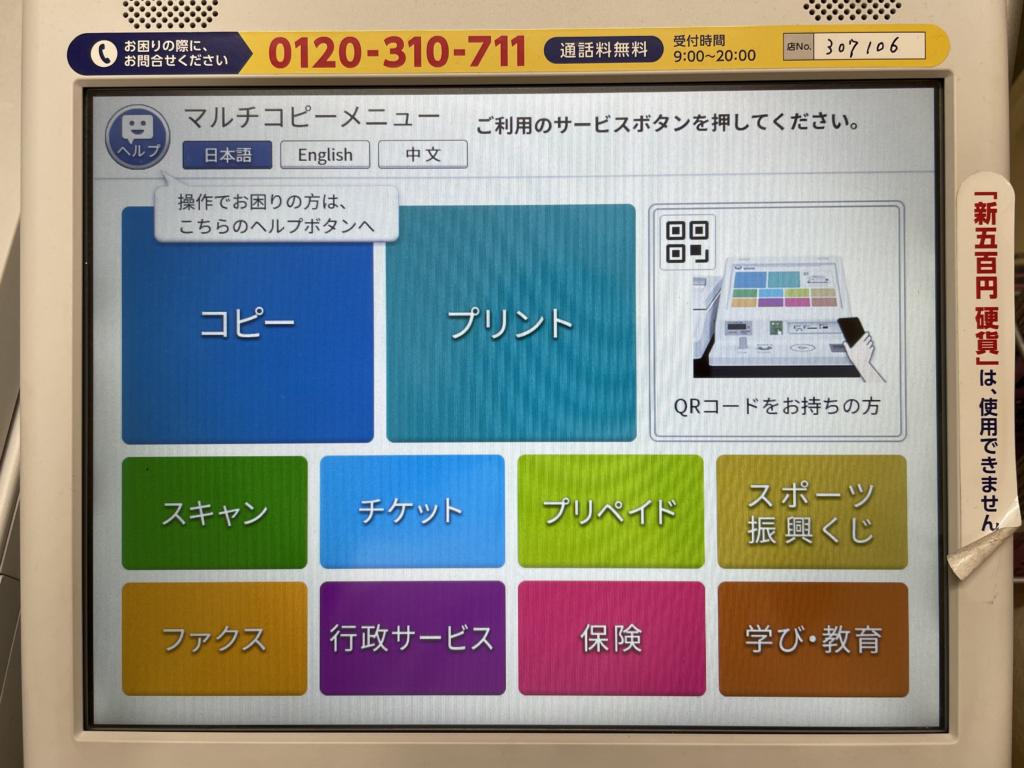
Seven-Eleven copy machines have a function called "booklet printing" that automatically prints on both sides of the paper. Here we summarize how to make a photocopy book using Seven-Eleven's booklet printing for beginners in doujinshi activities.
Seven-Eleven copier service "booklet printing"
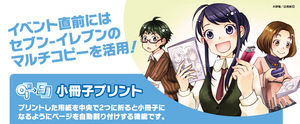
Source: multicopy-sp.com
In this issue.
Seven-Eleven copier service,
This time, we would like to talk about "booklet printing," a service offered by Seven-Eleven copier machines.
This function allows the copier to imposition the data made up of multiple sheets and print them as they are.
The two main advantages are as follows.
The troublesome imposition work that is often required for double-sided printing is not necessary.
The pages come out as they are, so there is no need to rearrange the printed materials, and the book can be bound immediately.
In short, the labor and expertise required to make photocopies is considerably reduced.
Source: multicopy-sp.com
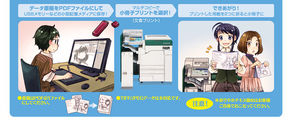
Make a PDF file of the data document.
Select "Print Booklet" on the multi-copy machine.
The booklet is ready to be printed!
It's that easy!
Doujinshi and booklet printing go hand in hand.

A feature for "Doujinshi."
Booklet printing is a function entirely for "coterie artists!
Doujinshi and booklet printing go hand in hand. If you are making photocopies of your book, you should definitely use this feature.
For four-frame comic doujinshi
Make a saddle-stitched copy book with 7-Eleven booklet printing.
For details, 12 A5 black-and-white pages should be in a finished state as a copy book, and a USB memory stick should be used. Also, double-sided printing should be used.
1. Created with DTP software "Scribus (Ver. 1.4.1)
Source: ubuntuhandbook.org
Created with DTP software "Scribus (Ver 1.4.1)
Create A4 PDFs with Scribus (Ver 1.4.1), an open source DTP software that is also available in Japanese.
The A4 PDF is created with Scribus (Ver 1.4.1), an open source DTP software that is also available in Japanese.
Non-bleed is manually entered in text on Scribus, but you only need to enter numbers in page order, and the 7-Eleven printer does the troublesome imposition.
All images are in PNG, but the dpi is not standardized.
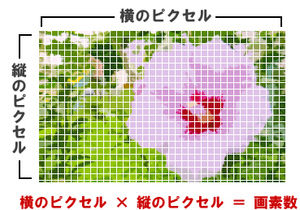
All images for the four-panel comic are 500 * 1550 pixel, and the two stories make one page.
The last step is to export the file as a PDF.
Export with "General > Max resolution 600 dpi" and "Color > Grayscale."
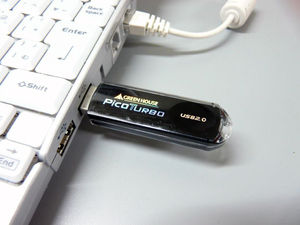
Place two PDF files with one-byte alphanumeric file names in the root of the USB memory stick.
High resolution version "1h4d01.pdf
Low resolution version "1h4d01s.pdf"
Scribus - Browse /scribus/1.4.1 at SourceForge.net
sourceforge.net
Powerful desktop publishing software
Source: www.manga-seikatu.net
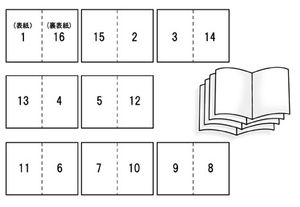
12 pages, making pages in the order in which they are read.
Source: photoshopworld.blog.fc2.com
All images at 500 * 1550 pixel

Source: www.roy.hi-ho.ne.jp
Export as PDF
Source: gigazine.net
Save to USB memory stick
2. "Document printing" at a Seven copy machine
Source: blog.kubo-vs-akagi.com
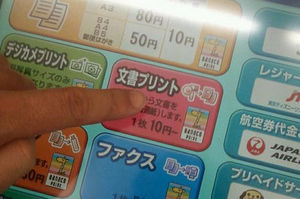
Printing documents" on a Seven copier.
Insert the USB memory stick and select a file name.
Select "Black and White" for the finish.
Set "Finished Paper Size" to A4 (printing is done on A4 paper, which is then folded and bound into an A5 book).
Select "Booklet" and "Right Binding".
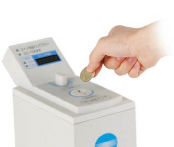
Specify the number of copies to be printed and insert coins.
Source: www.it-market.tv
Specify the number of copies to be printed and insert coins. (Bills are not accepted).
(B&W printing costs 20 yen for both sides.
Wait about 1 minute. Printing will start after a minute or so.
(The waiting time seems to be the same for both high-resolution and low-resolution versions.)
4. Binding

Contents
- Seven-Eleven copier service "booklet printing"
- Doujinshi and booklet printing go hand in hand.
- For four-frame comic doujinshi
- 1. Created with DTP software "Scribus (Ver. 1.4.1)
- 2. "Document printing" at a Seven copy machine
- Specify the number of copies to be printed and insert coins.
- 4. Binding
- Doujinshi (story manga)
- Data used for printing
- 1. Create a full-size document with a resolution of 600 dpi.
- 2. "Document printing" at a Seven copy machine
- 3. Bind the printed book
- Printing quality and price
- Full-size printing is not possible.
- Recommended for
- summary
- Related Links