

Here we summarize how to record "time free" programs on radiko, a service that allows you to listen to radio programs. Time Free is a feature that allows you to listen to radio programs broadcast within the past week at any time you like, and we have introduced methods for different devices, such as PCs and smartphones.
What is radiko's time-free?
radiko.jp
radiko.jp
It is a function that you can listen to the programs broadcasted within the past week later.
This function allows you to listen to programs that have been broadcast within the past week via radico. jp.
After a radio program is broadcast, you can find the program you want to listen to through Internet news and SNS!
With this function, you can listen to "missed programs" later.
It's not just TV, live, and DVD that you can see the interesting things about comedians, idols, and people who are in the news! In fact, the really interesting thing is radio! Time-free is recommended for those who want to listen to such an attractive Shabbekuri radio, but can't listen to it on-time due to work or study, can't listen to it in the middle of the night because they are sleepy, and it's troublesome to set up a scheduled recording!
Time-Free Recording! An Easy Way to Record Your Radiko [Windows & Mac] - Media Basket
mediabaskets.jimdofree.com
Time-Free Recording on Your Smartphone! An Easy Way to Record Radiko [Android & iPhone] - Media Basket
mediabaskets.jimdofree.com
How do I record a timefree show
On radiko. jp, time-free programs can be found in the list of programs within the past one week. You can listen to them on the spot, but there is a limit of one week. After one week, you will not be able to listen to them, so if you want to learn a language or listen to them later, you will need to record them to keep them at hand!
This time, I summarized the 4 patterns of [WindowsPC], [Mac], [Android smartphone], and [iPhone].
[For WindowsPC]
1) "Rajinko"

Available Devices Windows7.0 or higher, Mac version available
[Supported Radio Services]
Radiko. jp, Radiru ★ Radiru, Radiru ★ Radiru Misheard, Super! A & G +, Community FM including JCBA, OTTAVA, NHK ゴガク, 音泉, Shoutcast, Backstage Cafe, WREP, Shibuya Cross FM
[Usage fee] Free
Dogaraji Watch / listen / record / record / organize / easy / free.
dogaradi.123net.jp
"Dogaraji" is a free software for Windows that allows you to enjoy both video and Internet radio.
You can easily download your favorite videos and record your favorite radio programs.
It has a built-in special player, so you can immediately play downloaded videos and recorded radio programs with the special player.
Files that tend to be messy can be organized using tags in the library function.
Easy to use without getting lost.
"Dogaraji" was a free domestic software program that allowed users to enjoy both videos and Internet radio.
In September 2019, garaji, "the" Rajinko, "which specializes only in radio functions, appeared in September.
The radio functions include listening to the radio, recording programs (scheduled recording), library, sound capture function, "Time Free" of radiko. jp, and "Miss Listen Service" of Raju ★ Raju. Time Free and Miss Listen Service are provided by high-speed recording.
Save file format is non-conversion. File conversion can convert to AAC (. m4a), MP3, or WMA.
[1-1] How to record time-free programs with "Rakitiko"
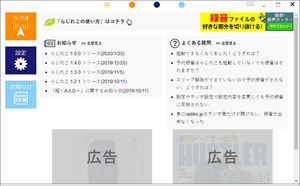
(1) Start the Magician and click the radio on the top page.
http://dogaradi.123net.jp/
Install' Wraitiko' from the Dogaraji home page. Click the' Wraitiko' icon on the desktop to start it.
Click "Radio" on the top page.
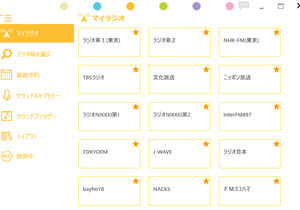
② Find the radio station of the program you want to record time-free.
If you click "Radio" on the home page, you'll see a page called "My Radio." There's a list of radio stations you can listen to, so click on a radio station.
If you don't have a radio station on My Radio, you can also select a radio station from the left menu and follow the instructions.
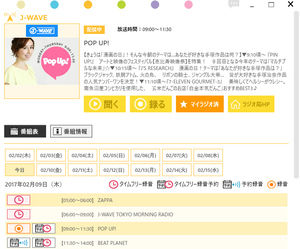
③ Search for the program you want from the program list on the radio station page.
When you find the desired radio station in ② and click it, the radio station page is displayed. It shows the current program information and today's program schedule. Since the program schedule is displayed by the date, click the date you want to record and display the program schedule.
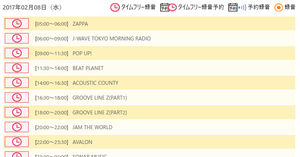
④ Click the "Time free recording" icon!
Click the "Time free recording" icon next to the program you want to record in the program guide to start downloading the program data. You will be notified when the recording is finished.
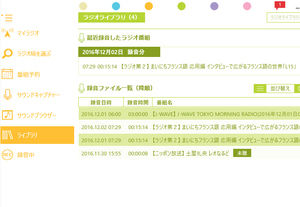
⑤ You can listen to recorded programs from the library!
Recorded programs are registered in the library. You can listen to recorded programs from the library.
These are the results of trying Raguiko.
At the end of recording, just like the notification function of Facebook, "notification notice" appears in the upper right corner of the Ruffian, so it was very useful.
This is not a recording method, but a method to download a file of a time-free program, so you can get and listen to the recording file very quickly. There is no division of the file.
If you use the copy function in "Library" or the function to copy files when recording in "Radio settings", you can convert the recorded file to mp3 or AAC format and retrieve it. You can also transfer the file to a mobile phone.
[1-2] Time-free programs can be pre-recorded
This function allows you to reserve time-free recording after the program is broadcast.
The reservation function is useful to prevent people from forgetting to record something because one week of the time-free release period has passed.
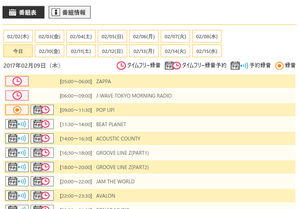
① Time-free recording can be reserved from the program list on the radio station page.
Four icons are displayed in the program guide
- Time-free recording
・ Time free recording reservation
- Scheduled recording
- Recording
Time-free recording is a recording of a program that has already been broadcast.
"Time free recording reservation" is used to record the time free part after the broadcast.
"Scheduled recording" when a radio broadcast is recorded at the beginning of the broadcast.
Recording is used to record programs that are currently on the air.
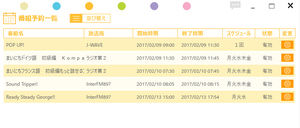
② You can change the reservation schedule from the program reservation list.
You can also change your one time time-free recording schedule from daily to weekly. Press the "Change" button at the top right of the list.
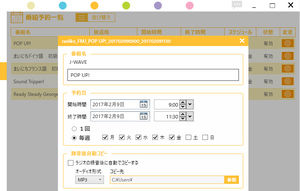
③ Reservation date can be changed, and after recording, conversion copy can be set.
If you press the "Change" button in ②, you can change the reservation date. If you want to make a reservation every week, please change it here.
You can also set the automatic copy after recording here.
* You can also do it in "Settings"> "Radio settings".
By being able to make time-free scheduled recordings, I thought that everything would be time-free! However, currently not all programs are time-free, so programs that are not time-free will still need "scheduled recording" to record radio broadcasts. It is important to check if the program you want to listen to is time-free and to use it differently.

Contents
- What is radiko's time-free?
- How do I record a timefree show
- [For WindowsPC]
- 1) "Rajinko"
- [1-1] How to record time-free programs with "Rakitiko"
- [1-2] Time-free programs can be pre-recorded
- 2. "RadikoPad"
- 3) "Rajroku 11"
- [3-1] How to record time-free programs with "Rajroku 11"
- [For Mac PC]
- 1) "Rajinko Mac version"
- 2) "Radicut 11 Mac version"
- 3) "Net Radio Recording X Mac Version"
- [For Android smartphones]
- 1. "Rakuraji"
- 2. "Raj Cutter"
- [For iPhone]
- 1. "Rakuraji"
- [Other methods]
- 1. Record the time-free playback sound using the recording function of the software.
- 2. Record the playback sound using the recording function of the PC.